Author Archives: jay

How to order ID Protection service for single or multiple domains?

To order an ID protection service to a domain or group of domains, please follow the steps:

  1. Go to My Domains > Whois Privacy Protection section. In the “Domain” column, select the ones which you need to protect, and mark their checkboxes. Click on the Whois Privacy Protection icon.
  2. In the “Order Whois Privacy Protection” page you need to choose a payment method. When ready press the “Continue” button.
  3. Ones the payment is completed the domain’s WHOIS Data shield will be activated.

Note: If you want to add Whois protection service only to a single domain name you can also click on its corresponding “Order Whois Privacy Protection” icon.

How can I downgrade to a cheaper hosting plan?

For a number of reasons, you may need to change from the current hosting plan that you now have to a less expensive package.

For example, if you are not utilizing the plan’s features, you may wish to consider downgrading to a lower plan in order to minimize your expenses.

The option to downgrade to a lower plan is only provided per request.

You will need to contact our Sales Department by opening a ticket from the Help section that is located on the top right or use the button below.

The best-case scenario is to downgrade to a lower package right before you renew your plan for another year.

That way, you will utilize the most of your current plan prior to downgrading it.

Please note that a dowgrade is only possible if the resources you are currently using (hosted domains, number of databases, etc.) are equal or below the resources offered by the plan that you consider changing to.

For example, if you currently have four hosted domain names but you wish to downgrade to a plan that allows you to host only two domain names you will not be able to do so, unless you remove two of your domain names from the Hosted Domains section in your Control Panel.

The example applies for all resources that come bundled with every hosting plan we offer.

Can I buy an SSL certificate from another vendor and install it here? How?

Yes, you can buy an SSL certificate from any vendor.

An SSL is issued based on the so-called Certificate Signing Request (CSR), which is a block of code generated on the basis of the contact details you enter for that SSL.

If you have already bought an SSL from another company, you can download/copy the CSR code, the Private Key, which was generated with it, then add them along with the SSL from My Domains -> SSL Certificates.

If you have any issues, you can also contact us by opening a ticket from the Help menu on the top-right of your hosting control panel or from the button below.

How can I transfer a domain name away from you?

A domain can be transferred only if 60 days have passed from its initial registration or from a transfer to our company.

The domain should also be unlocked and you need its EPP transfer authorization code, which may also be called an EPP key, authorization key or domain password.

When you log into your hosting control panel on our end, go to My Domains -> Registered Domains, where you will find your domain, and click on the padlock icon to unlock it and on the EPP icon to request its transfer code.

After that, you can order the transfer through the other company.

They will send a verification email to the Administrative contact email address associated with your domain with a link that you will have to click to approve the transfer.

In this light, you can double-check the address in your control panel here -> My Domains -> Registered Domains -> select your domain -> Edit  WHOISDetails.

What type of SSL certificates do you offer?

We offer Regular SSLs for one domain/subdomain and Wildcard SSLs that cover all subdomains under one domain, both from Sectigo.

They can be ordered for a period between one and two years.

For the time being, we do not offer multi-domain SSLs that can be installed on several domains in the same time, and Extended Validation (EV) SSLs, which show the company name in a green bar in the browser URL bar.

You can request the installation of a “Let’s encrypt” certificate too.

Here is what you need to consider when choosing an SSL certificate:

Let’s encrypt” certificates – really quick and easy to install. Perfect for non-commercial sites, blogs or photo galleries. Valid for only 90 days and must be renewed before they expire. On our platform, “Let’s encrypt” certificates are renewed automatically, so you won’t have to worry about that.

Regular SSL certificates – include a warranty against misuse or mis-issuance. Suitable for e-stores or enterprise sites, which need warranty-equipped SSL certificate issued by an established CA. Valid for at least one year and can be purchased for more years in advance.

Third-party
 certificates – if you have an SSL certificate purchased from somewhere else, you can upload it to a selected host with a click of the mouse.

How To Enable SSL (HTTPs) in WordPress?

After you have enabled SSL certificate on your domain name, you will need to set up WordPress to use SSL and HTTPs protocols on your website.

We will show you two methods to do that, and you can choose one that best fits your need.

Method 1: Setup SSL/HTTPS in WordPress Using a Plugin

This method is easier and is recommended for beginners.

  1. Log into the WordPress Dashboard.
  2. Roll your mouse over Settings in the navigation menu, then click General.
  3. In the WordPress Address (URL) field, enter your https address.
  4. Enter your https address in the Site Address (URL)  field. 
  5. Click the Save Changes button on the bottom of the screen. 

Once the settings are saved, WordPress will log you out, and you will be asked to re-login.

Then, you need to install and activate the Really Simple SSL plugin. For more details, see our step by step guide on how to install a WordPress plugin.

Upon activation, you need to visit Settings in the navigation menu, then click SSL. The plugin will automatically detect your SSL certificate, and it will set up your WordPress site to use HTTPs

The plugin will take care of everything including the mixed content errors. Here’s what the plugin does behind the scenes:

– Check SSL certificate
– Set WordPress to use https in URLs
– Set up redirects from HTTP to HTTPs
– Look for URLs in your content still loading from insecure HTTP sources and attempt to fix them.

Note: The plugin attempts to fix mixed content errors by using output buffering technique. It can have a negative performance impact because it’s replacing content on the site as the page is being loaded. This impact is only seen on first-page load, and it should be minimal if you are using a caching plugin.

Method 2: Setup SSL/HTTPS in WordPress Manually

This method requires you to troubleshoot issues manually and edit WordPress files. However this is a permanent and more performance optimized solution.

  1. Log into the WordPress Dashboard.
  2. Roll your mouse over Settings in the navigation menu, then click General.
  3. In the WordPress Address (URL) field, enter your https address.
  4. Enter your https address in the Site Address (URL)  field. 
  5. Click the Save Changes button on the bottom of the screen. 

Once the settings are saved, WordPress will log you out, and you will be asked to re-login.

Next, you need to set up WordPress redirects from HTTP to HTTPS by adding the following code to your .htaccess file.

<IfModule mod_rewrite.c>
RewriteEngine On
RewriteCond %{HTTPS} off
RewriteRule ^(.*)$ https://%{HTTP_HOST}%{REQUEST_URI} [L,R=301]
</IfModule>

If you want to force SSL and HTTPS on your WordPress admin area or login pages, then you need to configure SSL in the wp-config.php file.

Simply add the following code above the “That’s all, stop editing!” line in your wp-config.php file:

define(‘FORCE_SSL_ADMIN’, true);

This line allows WordPress to force SSL / HTTPs in WordPress admin area

Once you do this, your website is now fully setup to use SSL / HTTPS, but you will still encounter mixed content errors.

These errors are caused by sources (images, scripts, or stylesheets) that are still loading using the insecure HTTP protocol in the URLs. If that is the case, then you will not be able to see a secure padlock icon in your website’s address bar.

Majority of the incorrect URLs will be images, files, embeds, and other data stored in your WordPress database.

All what you need to do is find all mentions of your old website URL in the database that started with http and replace it with your new website URL that starts with https.

You can easily do this by installing and activating the Better Search Replace plugin.
How To Enable SSL (HTTPs) for your website?

Website visitors are becoming more aware of the importance of secure data transfer, and they often look for the green lock that appears in their browser on HTTPs-enabled websites.

Before you can have your website loading at https:// instead of http:// you need to have SSL certificate installed for your domain.

You can get one from the hosting control panel -> My Domains -> SSL Certificates

The options are either to Order SSL certificate or Request Let’s Encrypt certificate.

Once you have installed the SSL, please allow up to 1 hour for the new SSL IP propagation!

After you have enabled SSL certificate on your domain name, you will need to set up a redirect for your website to use SSL and HTTPs protocol.

The procedure is valid for any static or dynamic website, which does not have a configuration for the URL it is installed on, like WordPress.

If you need to enable HTTPs for your WordPress site, please see the How To Enable SSL (HTTPs) in WordPress article.

First, go to Files -> File Manager in your hosting control panel and navigate to your domain root folder, usually /www/mydomain.com/

If there is no file called .htaccess created, then create one using the New File button.

Edit the .htaccess file and place the following code at the top:

RewriteEngine On
RewriteCond %{HTTPS} off
RewriteRule ^(.*)$ https://%{HTTP_HOST}%{REQUEST_URI} [L,R=301]

Click Save.

Once you do this, your website is now fully setup to use SSL / HTTPS.

I want to create multiple usernames/passwords for a certain directory, how do I do this?

There is a tool that allows you to set password protection for a specific folder. Just go to the Advanced > Password Protection section of the Web Hosting Control Panel.

Click on the New Password Protected Area button.

Select your domain from the “Drop-down menu” or type the full path to the protected folder in the “Path” field (e.g. /www/my-best-domain.com/protected_folder). Enter the username and the corresponding login password. Click the Add PPA button to confirm.

If you need to set more users, repeat the above steps, just use different usernames.

IMPORTANT: If there is an .htaceess file within the protected folder, the protection would not work, so either remove it or consider another password protection technique.

How to change the permissions of a file or a folder?

Sometimes when you install a script manually, you would see an instruction “change the permissions of file.php to 666“, for example.

Those permissions are associated with the read, write and execute rights that the file owner, group members and everybody else has for that file.

There are several ways to change the permissions of a file or a folder – through the File Manager section, SSH, or through an FTP client, such as FileZilla.

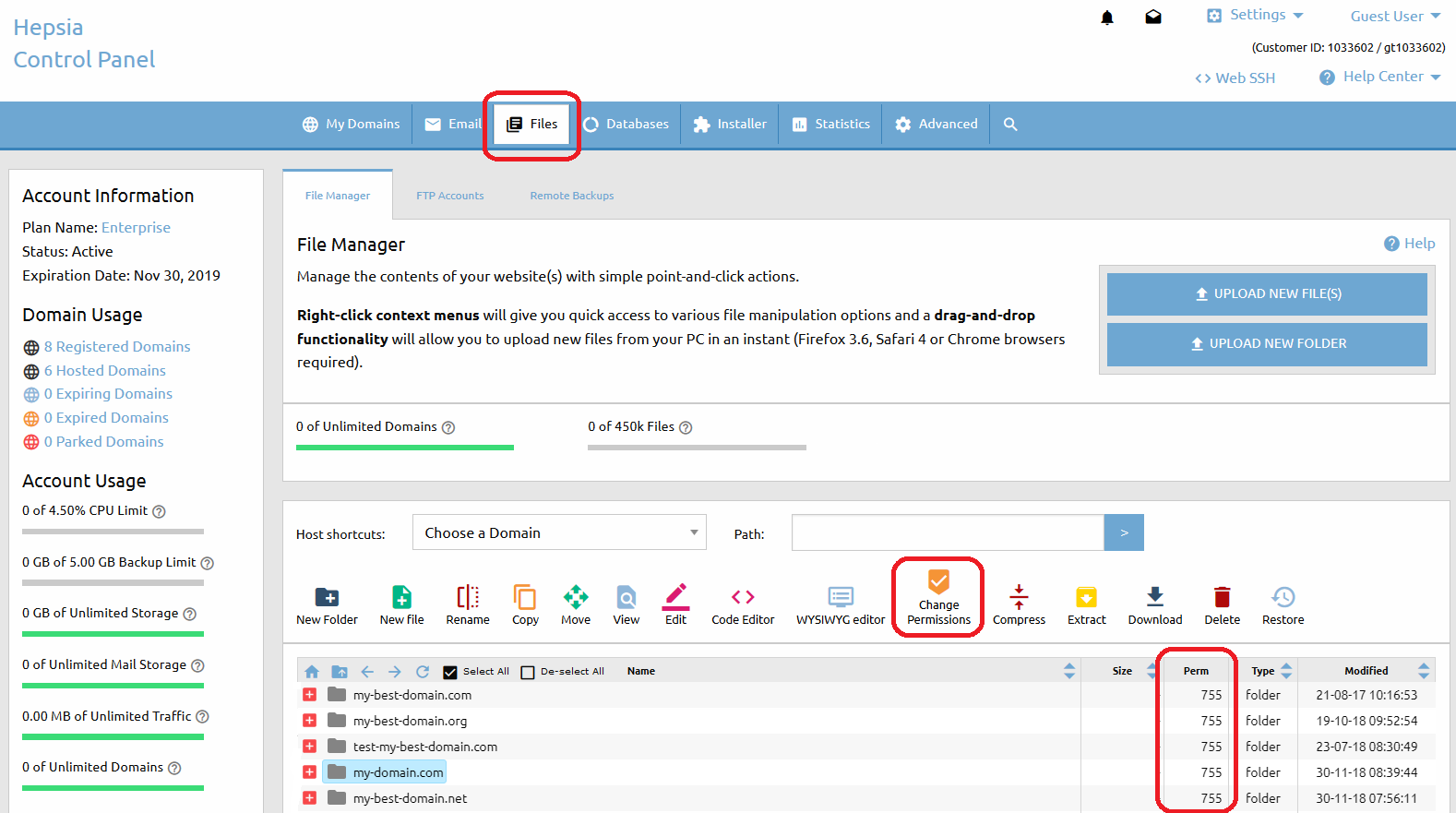
If you go to the File Manager section of the Web Hosting Control Panel (Files > File Manager), you will see a column “Perm“.

There is a value for every file or folder in your account, with default values 644 for files and 755 for folders.

If you want to change the permissions of a particular file or folder, simply click on the Change Permissions icon from the top list menu or click right button of the mouse. A drop-down menu will appear and you have to choose Change Permissions. A small window will show up and you’ll be able to choose the new value.

If you want to change the permissions of multiple files or folders, you have to select them first, then select the Change Permissions icon located at the top of the File Manager section.

Click on the Change button for the changes to take effect. 

An alternative to using our File Manager tool would be changing the file permissions using an FTP client.

That option would also give you the opportunity to change the permissions of all subdirectories and files within a folder recursively. 

We recommend FileZilla, a freeware FTP client. Here is how you can change the permissions using that client: 

First, connect to your account on the server via FTP to see a list of all the files and folders that you have.

To change the permissions, right-click on a file and choose the File Attributes option. You can type a numeric value or choose the Read/Write/Execute permissions marking the checkboxes.

If you choose the File Attributes option when you right-click a folder, you will see an extra option – Recurse into subdirectories.

You can change the permissions of all the files, all the folders, or both, as long as they are located in the folder you have just clicked on. 

Last, but not least, you can change the permissions via Secure Shell (SSH) if it is active for your account. The command is:

chmod number filename

For example:

chmod 644 example.php

For additional details about SSH – how to activate and use it, refer to this article: What is SSH, how do I activate and use SSH?

I cannot delete a file/folder in my account. How do I solve this?

When attempting to delete a file or folder, you may encounter an error if its permissions do not allow removal. This applies to both individual files and directories.

If you are trying to delete a folder, the issue may not be with the folder itself, but with one or more files or subfolders inside it that have restrictive permissions.

To resolve this issue, you need to update the permissions of the affected file. If the problem involves a folder, you may need to change the permissions for the folder as well as all files and subfolders contained within it.

Set the permissions to 755. Once these permissions are applied to the file or folder (including its contents), you should be able to delete it using the File Manager (Files → File Manager) or via FTP.

If you don’t know how to change the permissions of a file or a folder, please refer to this article: How to change the permissions of a file or a folder?